
A Pro Audio Converter in Your Pocket: Whole Folders from MP3 to WAV on iPhone, iPad and Mac
Convert MP3 to WAV folder by folder, keeping every subfolder and name. Stemly Convert costs about as much as a coffee, and it does something many bigger tools don’t: it converts a whole tree of folders and keeps every subfolder and every name. It works on Mac, iPad and iPhone, and it’s not just for musicians.
1 The problem every band with backing tracks knows
Backing tracks pile up: some are MP3s from a friend, some are exports from different sessions, some are 44.1 kHz and some are 48 kHz. The player itself tells you what to do. In my Stemly manual the golden rule is: convert all files to WAV 48 kHz before soundcheck. MP3s played as they are get decoded in real time on the processor, which is a risk with many tracks, and a WAV at the wrong sample rate can even play slightly faster. Converting one file at a time is tedious, and doing it by hand across hundreds of songs is how you end up with a mess of folders.
2 The big plus: your folder structure stays exactly as it is
This is why I built Stemly Convert. You drag in a whole folder tree, choose the output format, and the app converts everything while keeping every subfolder, every name and the whole organisation. Same tree, new format. No sorting afterwards, no files lost in the wrong place.
An example of a folder tree: the structure stays the same, only the format changes.
3 How it works, in three moves
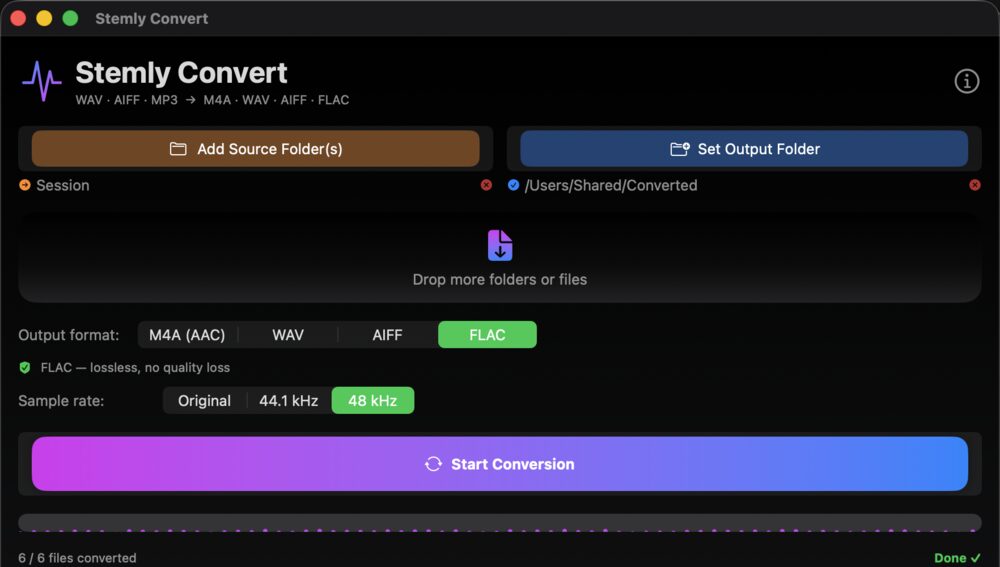
- Add a folder (or files). On a Mac you can simply drag it into the window.
- Choose the output format (WAV, AIFF, FLAC or M4A), the sample rate (for example 48 kHz) and, for WAV and AIFF, the bit depth. For M4A you pick the bitrate.
- Convert. You see the progress for every file and the final list, with its folder path.
4 A real converter in your pocket: iPhone and iPad
The Mac version is for the big jobs, straight from your desktop or an external drive. But the part I find the most interesting is the iPhone and iPad version, because a proper audio converter on a phone is rare. You import files and whole folders from Files or iCloud Drive and convert them right on the device, with the same serious options as on a Mac: the output format, the sample rate (original, 44.1, 48 or 96 kHz), the bit depth and, for M4A, the bitrate up to 320 kbps. When it’s done you save or share the result. That’s handy at a rehearsal or a gig when something arrives in the wrong format. The result list on the iPad and iPhone shows the full folder paths, such as Drums/Snare_Top.wav.
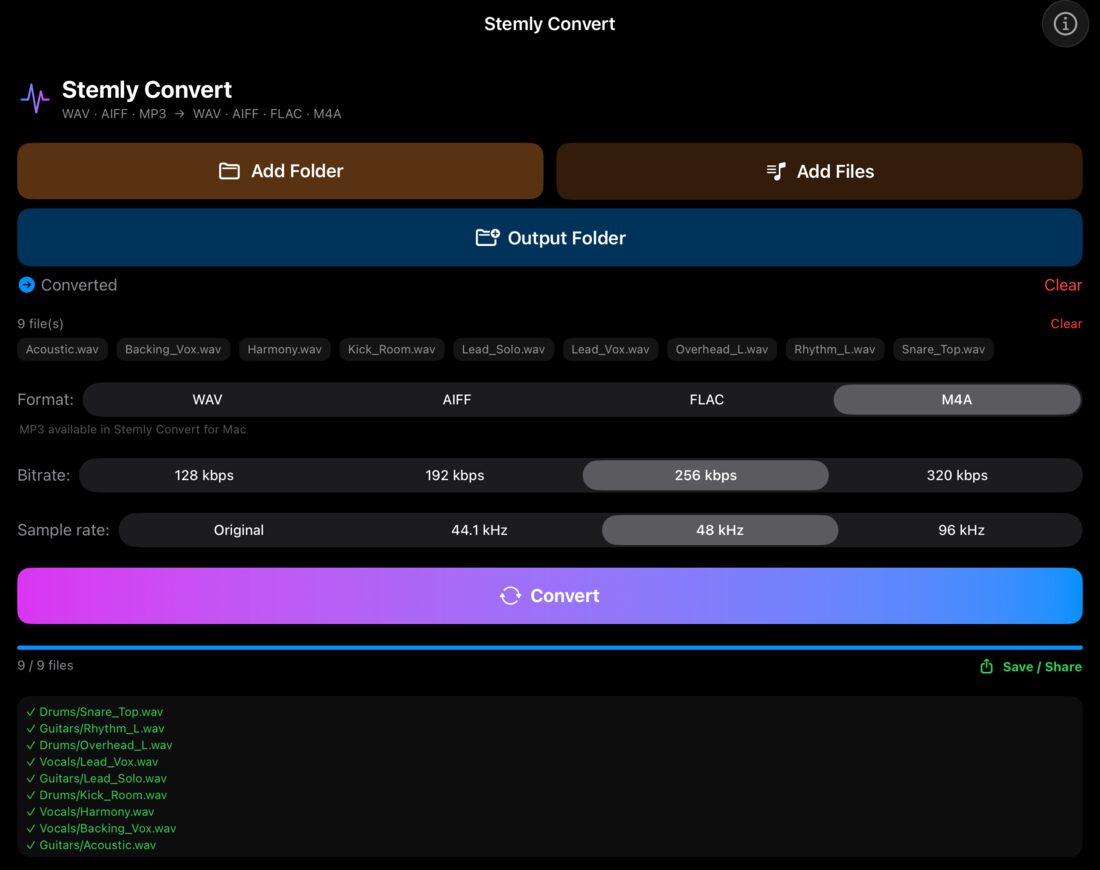
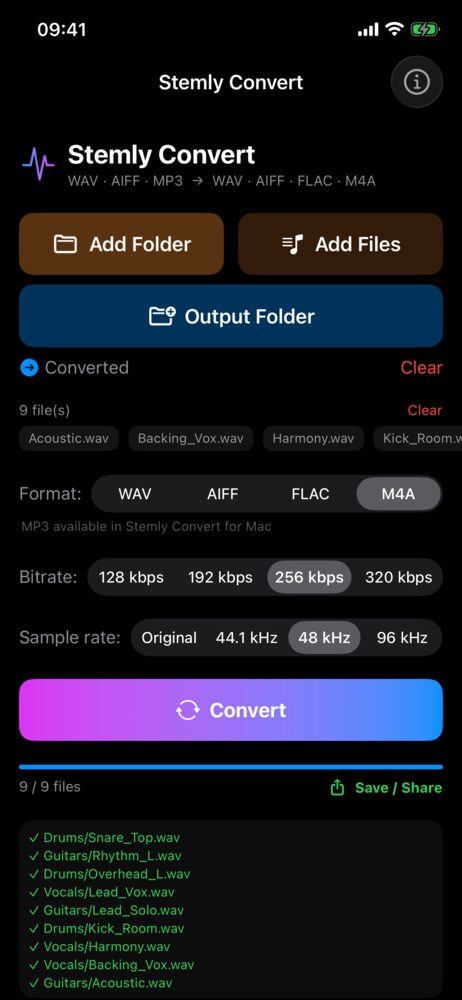
Everything happens on the device: no cloud, no account, no uploads, no subscription.
5 Not only for musicians
I built it with backing tracks in mind, but a converter that keeps your folders in order is useful to anyone who works with audio. According to the App Store, it’s made for musicians, producers, audio engineers, podcasters, content creators and sample library managers. A few real situations:
- Podcasters and content creators: turn a whole folder of recordings into WAV for editing, or into smaller M4A files to send.
- Video and audio editors: bring a whole library to one sample rate, such as 48 kHz, in one go.
- Sound engineers: convert session exports for a client or a colleague and keep the folders as they were.
- Anyone with a big sample library: change the format of thousands of files without rebuilding the folder tree by hand.
6 How it fits in my Stemly ecosystem
I use Stemly Convert as the first step before the stage. I export the tracks from my DAW or take them from the archive, convert the whole folder to WAV 48 kHz in one go and copy it to the iPad for Stemly, my multitrack player. It also pairs well with Stemly Split: after splitting a song into stems I can bring the result to the right format and the right sample rate in one pass.
See the whole path, from the files to the mixer, in my iPad and Allen & Heath SQ5 guide, and how I split songs into stems in the Stemly Split article.
7 What it costs
Stemly Convert is a one-time purchase of $2.99, with no subscription. According to the App Store, you can share it with up to six family members. The Mac version needs macOS 14.6 or later, and the iPhone and iPad version needs iOS or iPadOS 17.6 or later.
Stemly Convert for Mac → · Stemly Convert for iPhone and iPad → · Product page
This article describes my own app and is not an official document of any other company.