
No Laptop, No Heavy Gear, Reliable on Stage: iPad, Allen & Heath SQ5 and a JOYO Pedal. My Wedding and Concert Rig from Cubase to the Stage
After years of searching for better tools, I built my own app. Here is my complete iPad SQ5 setup for weddings, concerts and events: preparing tracks in Cubase, USB into an Allen & Heath SQ5, a Bluetooth pedal, lyrics for the whole band and offline break music.
1 Why I built my own app
I’ve been performing for 35 years, on all kinds of stages. For many years I kept looking for new solutions, and in the end I decided to create my own app that covers everything a wedding and event musician needs. I keep improving it and adding ideas from friends in other bands. Since May 2026 I’ve played about 25 gigs with Stemly, the App Store version, and I haven’t had a single crash. At weddings my tablet and the mixer run for 10 hours straight, so the rig has to be simple, stable and comfortable. So far no other program has covered my needs this well.
2 Why an iPad and not an Android tablet?
Stemly is an Apple app, so it runs on iPad, iPhone and Mac. I use an iPad on stage because USB audio interfaces and mixers that follow the class-compliant standard work right away, with no drivers, and an iPad behaves the same way every time. That matters when the tablet and the mixer run for 10 hours at a wedding. Your bandmates don’t need an iPad at all: they read the lyrics on any phone, iPhone or Android, in a web browser.
3 What you need
- An iPad with Stemly (App Store) and a Mac to move your audio files
- A USB cable from the iPad to the mixer’s USB-B port (USB-C to USB-B, or a USB-C connection with a small adapter, as in my photo) and an Allen & Heath SQ5 (my mixer)
- If your iPad or iPhone has a Lightning port instead of USB-C: Apple’s Lightning to USB Camera Adapter (often called an OTG adapter), which goes between the device and the USB cable
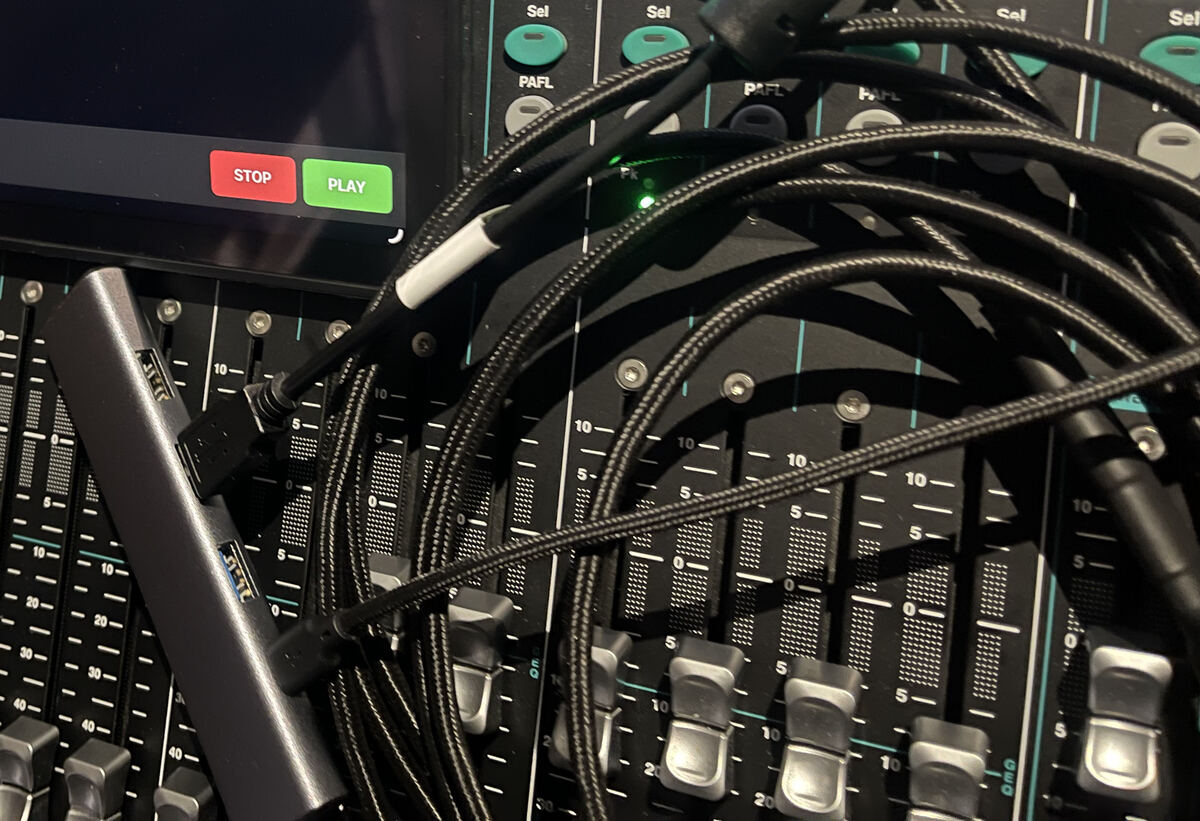
- For long events: a USB hub with Power Delivery and USB ports (I use a Ugreen hub with PD and three USB ports), so the iPad keeps charging, plus a 3 m USB-C extension cable (male end to the iPad, female end in the rack)
- Optional: a Bluetooth foot pedal (I sometimes use a JOYO pedal)
- Your own Wi-Fi router for lyrics, no internet needed, and phones for the band (iPhone and Android both work)
4 Preparing the tracks: from Cubase 13 to the iPad
I work in Cubase 13 and create all the tracks in this DAW. After the mixdown I export the music and the vocals separately. You can prepare a few different groups (for example drums, bass, keys and vocals) or every track on its own, depending on how much control you want on stage.
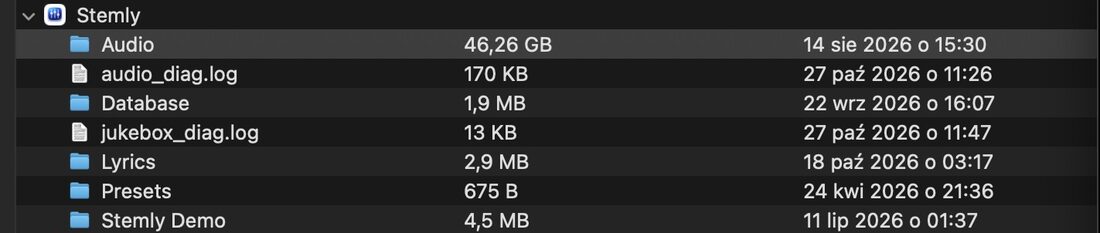
Then I connect the iPad to the Mac with a USB-C to USB-C or USB-C to USB-A cable and copy the folder with the song’s title into the Stemly folder on the iPad. After that, on the iPad itself, I move that folder into Stemly → Audio. The system doesn’t let you copy from the Mac straight into the Audio folder, so the order is always: Mac → Stemly folder → Audio folder.
5 Connecting the iPad to the SQ5
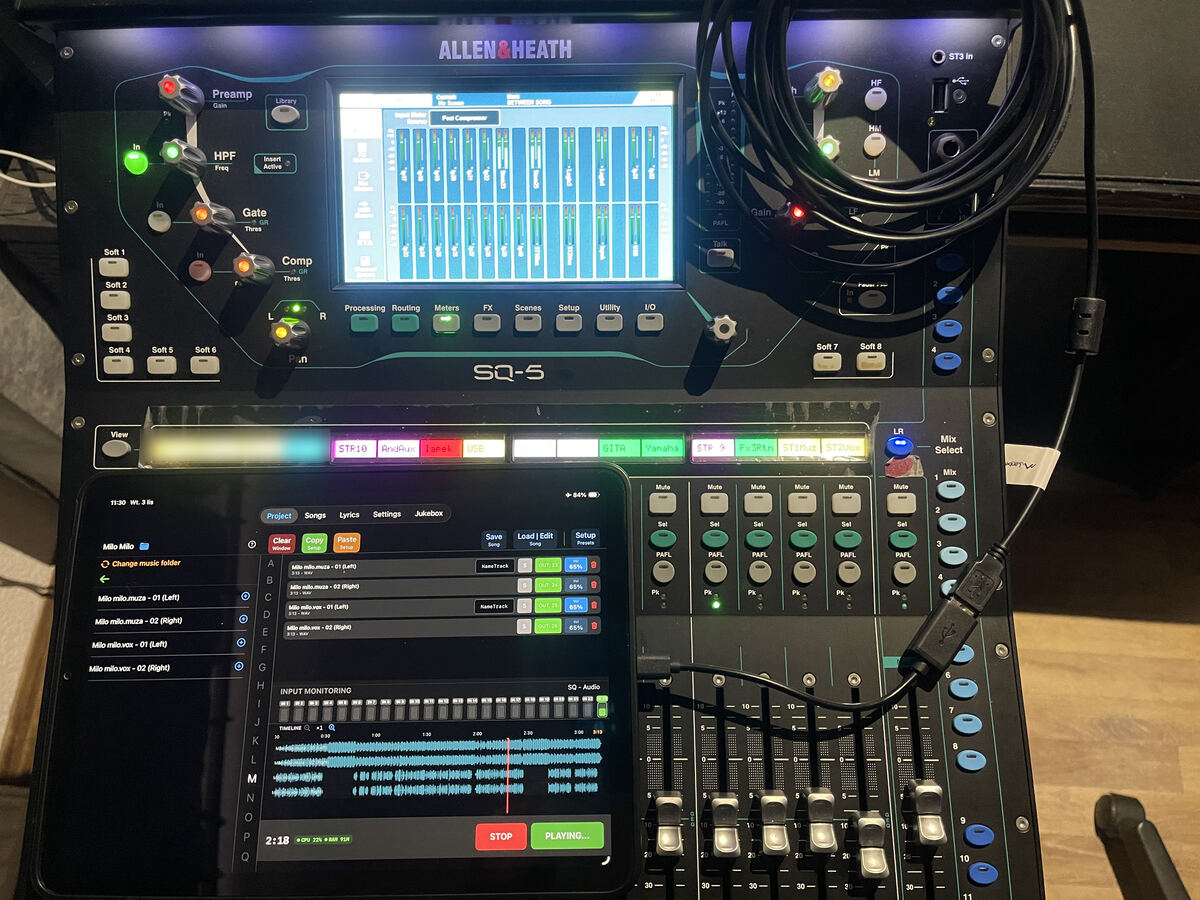
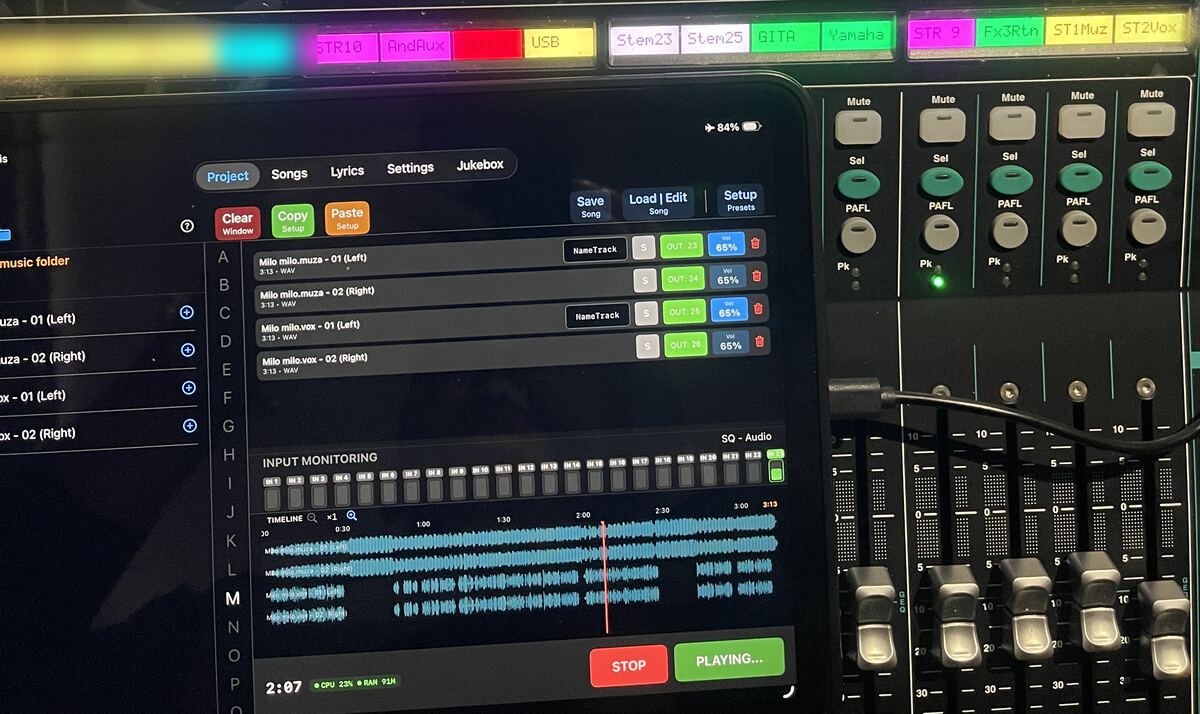
For home tests and short gigs I connect the iPad straight to the SQ5: a USB cable from the iPad to the mixer’s USB-B port, in my case with a small adapter, as in the photo below. For long events I put a powered hub in between (iPad → hub → mixer). The hub lives in the rack, and a 3 m USB-C extension (male end to the iPad, female end in the rack, where I plug the hub in) lets me place the iPad wherever it suits me. My Ugreen hub has Power Delivery and three USB ports, so the iPad keeps charging and I never worry about the battery during a 10-hour wedding. On the SQ5 I set USB to 48 kHz. Menu names can differ between firmware versions, so check the official Allen & Heath documentation for the exact path.
iPhone and iPad with a Lightning port: the OTG adapter
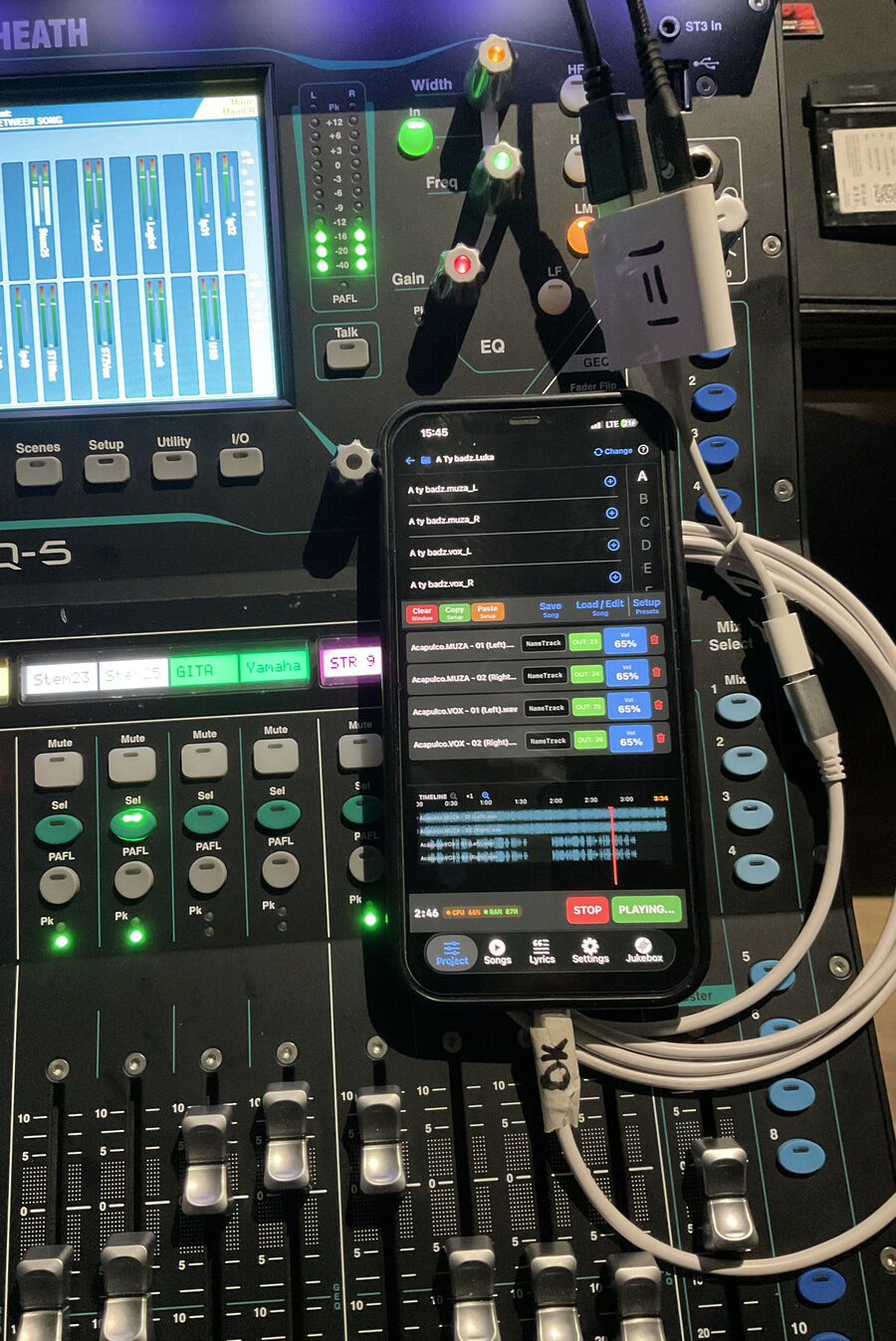
My iPad has a USB-C port, so it connects with no extras. iPads and iPhones with a Lightning port need Apple’s Lightning to USB Camera Adapter (OTG) to connect a USB mixer. I used to play with an iPad Air 3 and this adapter, and it worked, and a friend of mine plays like that all the time. The photo and the short clip below show an iPhone 12 Pro Max with the adapter, connected to the SQ5. In the clip you can also see the Songs tab and the lyrics, all from the iPhone.
6 Routing: Stemly and the Jukebox
In my setup Stemly always plays on channels 23–26 (two stereo pairs), and the Jukebox is routed automatically to 1+2. The Jukebox switches itself off the moment I press PLAY in Stemly, so the two never clash. Your engineer handles everything like any other channels, with faders, EQ and effects. Pick the channels that fit your own patch.
7 Controlling the show: taps, pedal and auto breaks
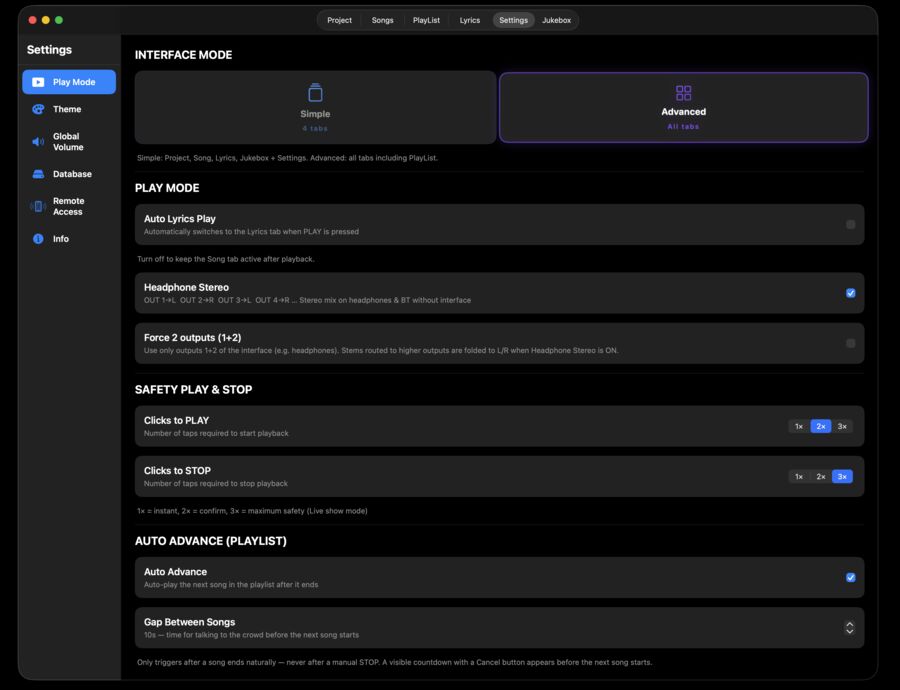
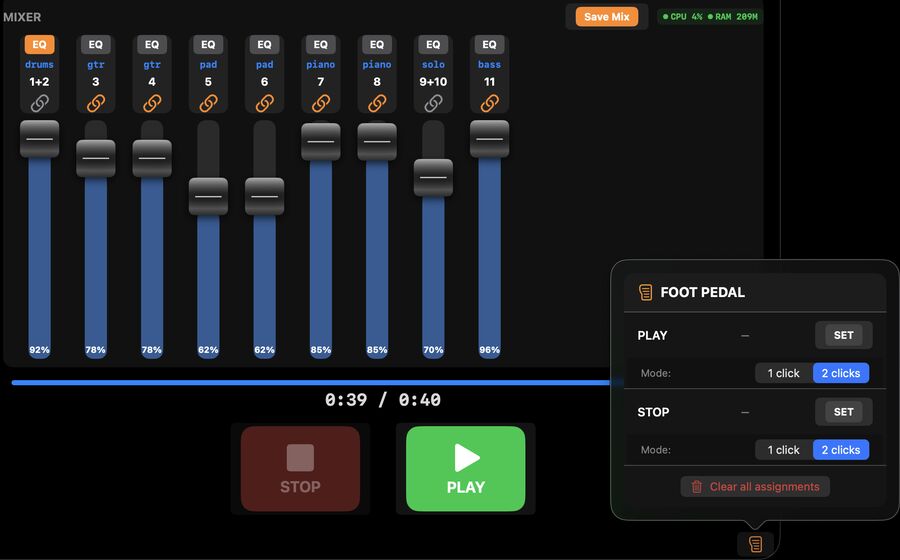
You can start songs by touch, and in Settings → Play Mode you choose whether PLAY and STOP need 1 to 3 taps, so an accidental touch can’t stop the backing track mid-song. For hands-free control you can use a Bluetooth foot pedal; I sometimes use a JOYO pedal for PLAY and STOP.
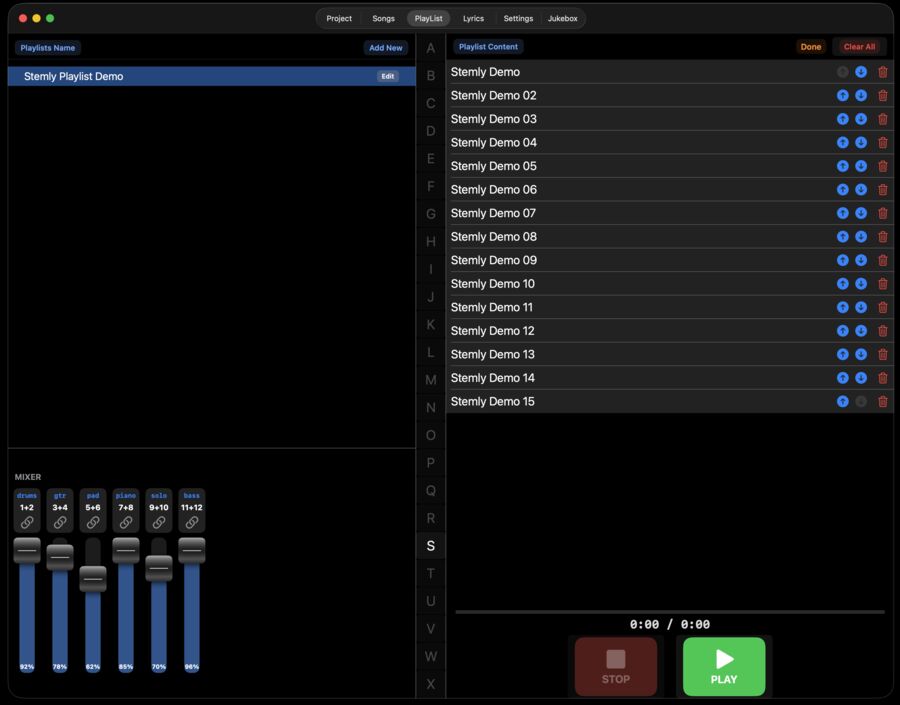
For quick gigs you can build a playlist and turn on Auto Advance, with automatic breaks between songs from 0 to 30 seconds. Or simply control PLAY manually, whenever you need to.
8 Lyrics and the next song for the whole band
In Stemly I turn on Auto Lyrics Play (Settings → Play Mode). When I press PLAY, Stemly opens the lyrics of the selected song. We have our own Wi-Fi router, with no internet, only our own network. Before the gig my bandmates scan the QR code in the Lyrics tab. Some have iPhones, some Android phones, and it works on both, with no app to install. During the show everyone sees the lyrics of the current song in their browser. You can see the Songs tab and the lyrics appearing on an iPhone in the clip in the connection section above.
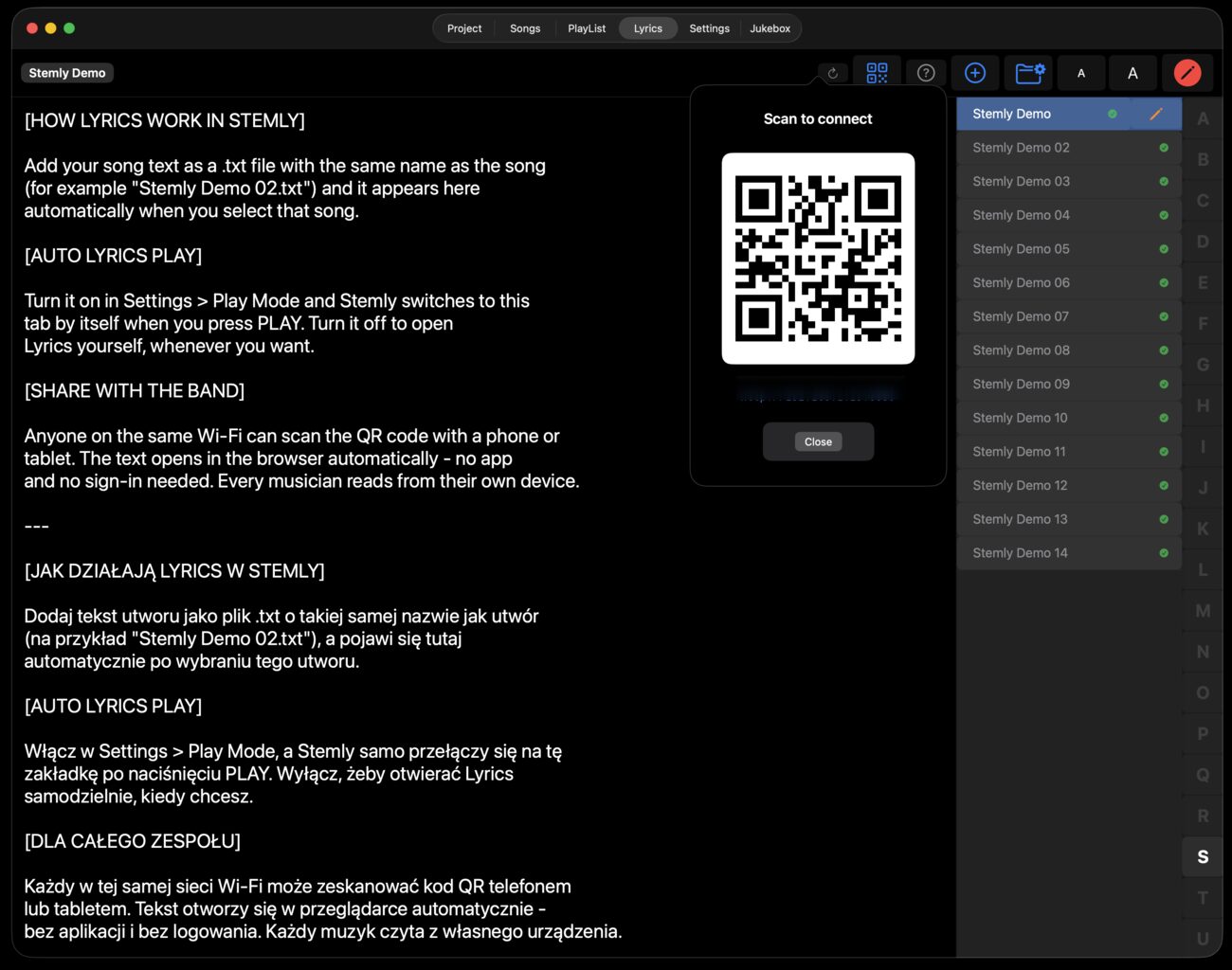
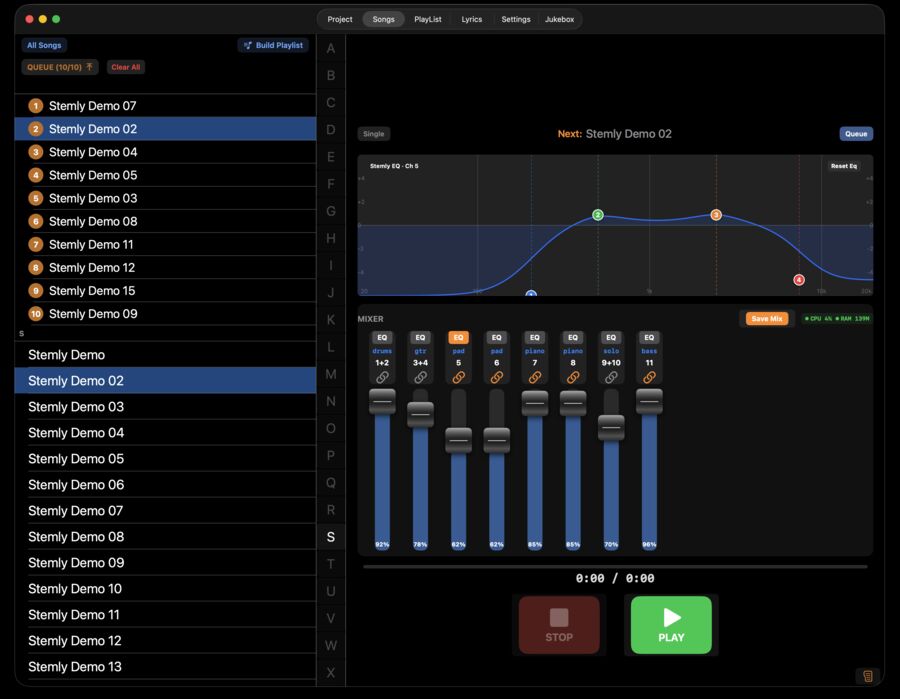
While a song is playing I highlight the next one in Songs, and everyone sees the title of the next song. We don’t shout, text each other, pass paper lists or agree on a playlist. With over 350 songs in Stemly, the big alphabet view lets me set the next song from the end of the list in about 3 seconds.
9 Mixing on the fly, now with an EQ
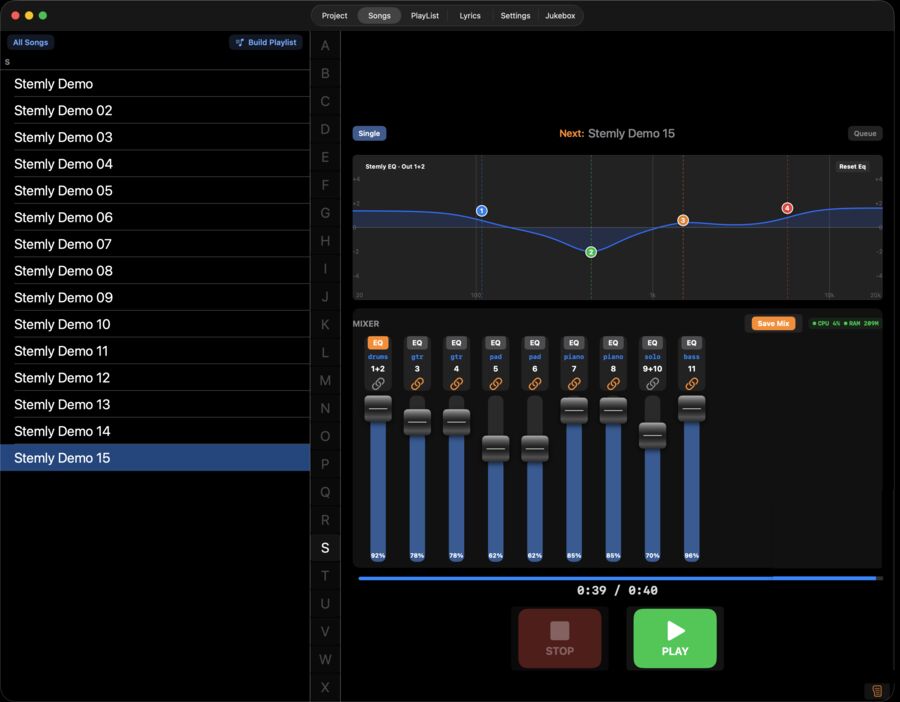
During a gig I correct the track volumes and save them on the fly, so the next time the song sounds just right. Recently I also added a 4-band EQ on every channel, so I can shape the sound right in the app.
10 Break music without extra players
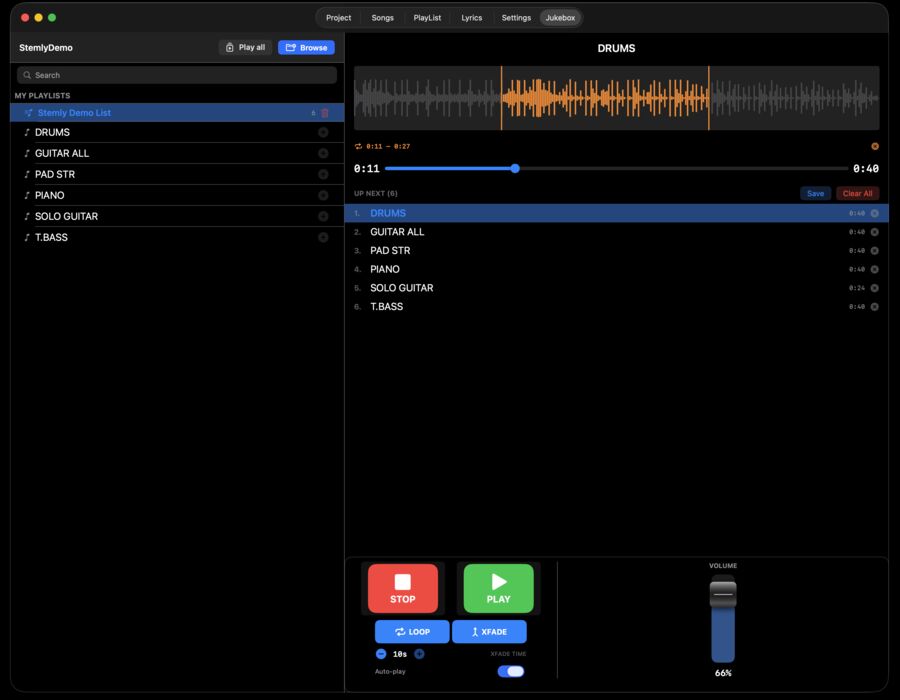
I also added an offline media player, the Jukebox. During breaks I don’t have to look for any additional player: I play my own playlists straight from the same iPad, with no internet. It goes to channels 1+2 automatically and switches off as soon as I press PLAY in Stemly.
11 What’s next: Stemly Personal
I’m also testing Stemly Personal, a version that, besides playing the tracks, controls the SQ5 itself: volume, EQ, the whole preamp section and more. If many people are interested in a version like this for the Allen & Heath SQ series, and for other mixers too, I’ll gladly consider releasing it. Write to me if you’d use it.
Get Stemly on the App Store → · Stemly page
Allen & Heath, SQ, Cubase and JOYO are trademarks of their respective owners. This article describes my own setup and is not an official document of any of these companies. See the manufacturers’ documentation for official instructions.